
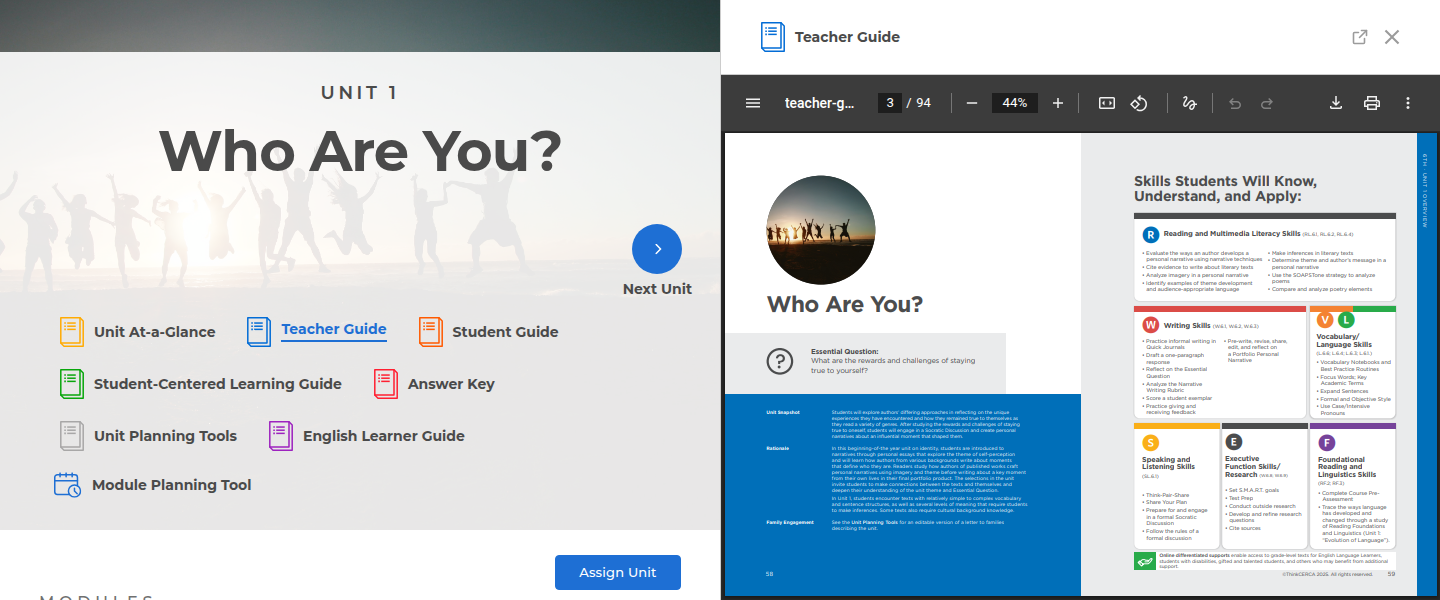
Resources now open in a panel on the right side of the page instead of a new browser tab. The curriculum stays visible on the left, so you can read a guide and keep working in the unit at the same time.
Where you’ll find it
Split screen works for the guides and resources on Core ELAR grade pages and unit headers, and on course headers.
How to use it
- Navigate to a Core ELAR unit or a course in the Library.
- Select a guide or resource in the header.
- Drag the edge of the panel to make it wider or narrower.
- Select another resource in the panel to switch to it.
- Select the ×, or press Escape, to close the panel.
Good to know
To see a guide in a full browser tab, select the open in new tab icon at the top right of the panel, next to the ×. On phones, guides open in a new tab instead of the panel.

The panel stays open while you move around Core ELAR or the same course. It closes when you go to another section or course, when you refresh the page, or when you open the Module Planning Tool.
Have questions or need help? Contact our support team at support@thinkcerca.com, and we’ll be glad to help.