
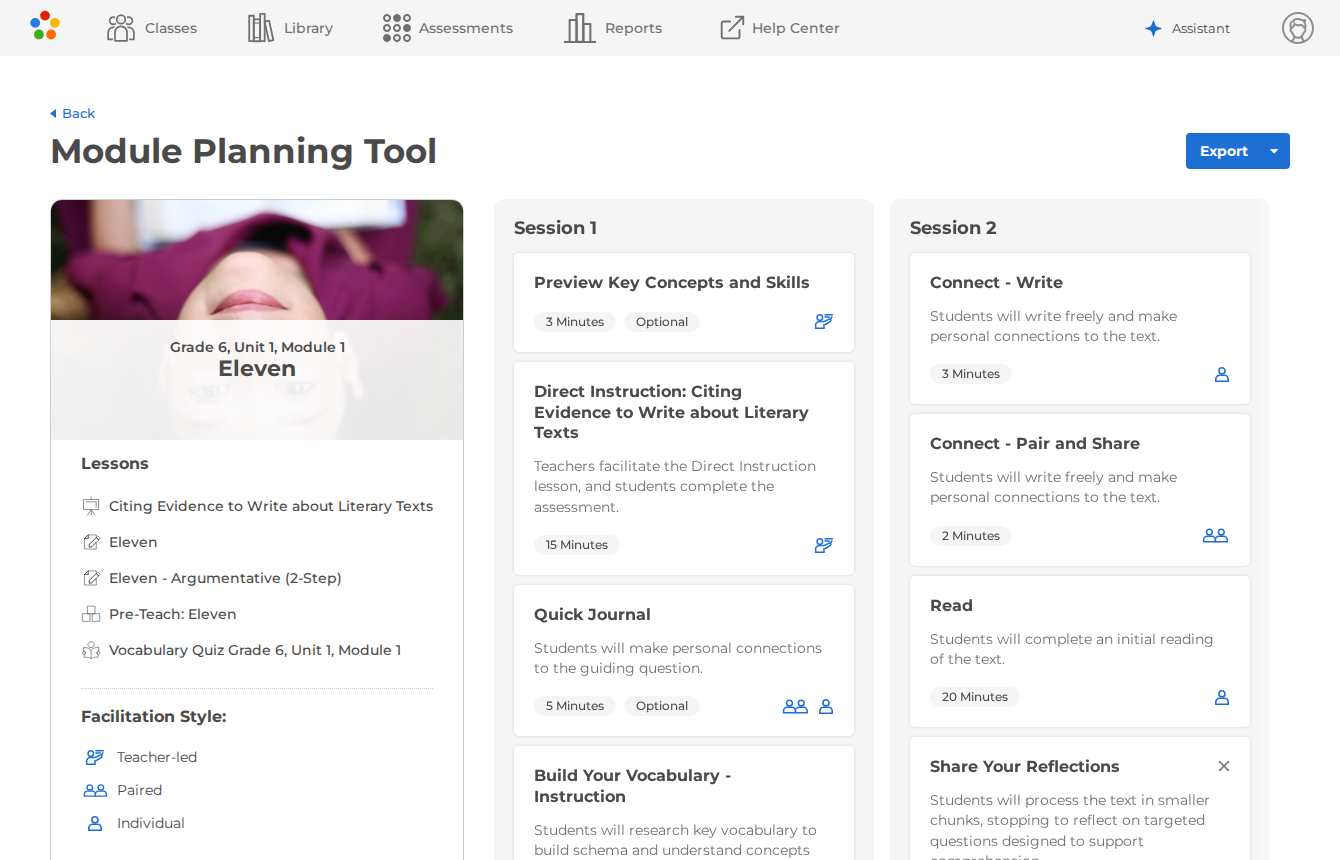
The Module Planning Tool turns a Core ELAR module into a plan for your class sessions. Tell it how many sessions you have and how long each one is, and it spreads the module’s activities across them in order, with a time for each.
Where you’ll find it
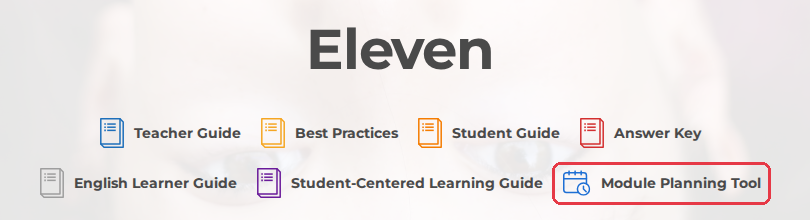
The “Module Planning Tool” button is on Core ELAR unit and module pages, next to the guides. It appears only where a plan is available.
How to use it
- Navigate to a Core ELAR unit or module in the Library.
- Select “Module Planning Tool.”
- Choose a module, the number of sessions, and the minutes per session.
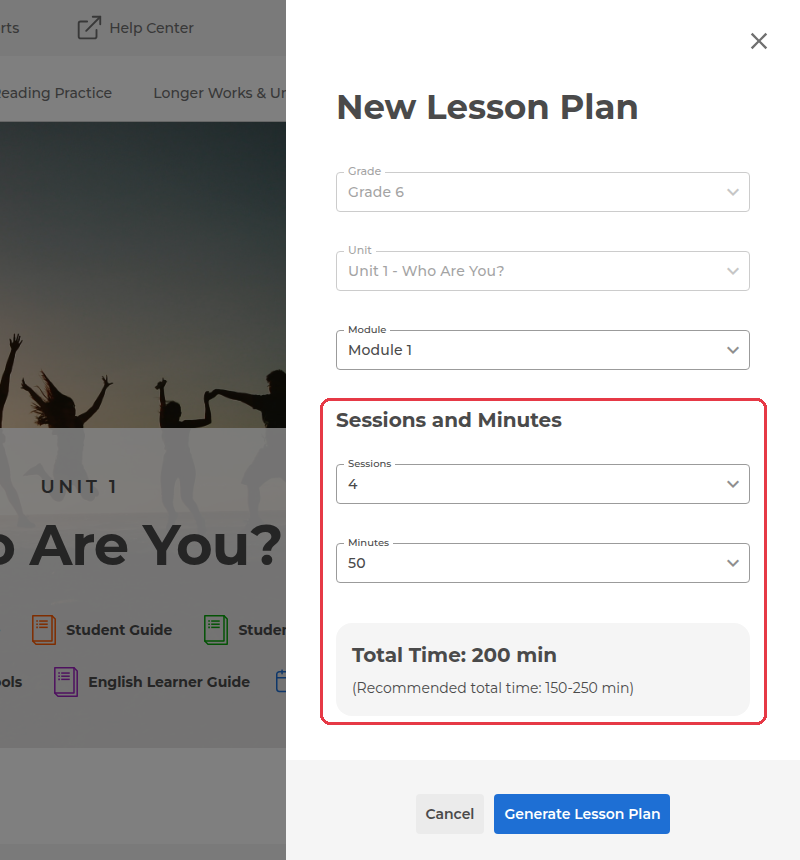
- Select “Generate Lesson Plan.”
- Select “Export” to print the plan or download the teacher or student guide.
Good to know
A new plan starts at 4 sessions of 50 minutes; you can pick 1 to 10 sessions of 20 to 90 minutes, and the panel shows a recommended total of 150 to 250 minutes. In the plan you can reorder tasks or remove one with the remove button on its card, but you can’t edit titles, descriptions, or times. To start over with different settings, select “Back” and open the Module Planning Tool again.
Select a task card to see the matching pages of the Teacher Guide and Student Guide. If a task has no guide, you’ll see “No guides available.” The “Export” menu offers Export Plan, Download Teacher Guide, and Download Student Guide.
Have questions or need help? Contact our support team at support@thinkcerca.com, and we’ll be glad to help.