
Hello Partners, follow these steps to approve the CERCA AI scores on student writing and release the scores to students. This is a necessary step for any school or district who has chosen to require teachers to proof the AI scores before they are released to students. If you are unsure whether or not this feature applies to you, contact your district leaders or email support@thinkcerca.com to inquire.
- Navigate to the Classes page.
- Select the blue “Needs Approval” icon from the progress bar on a class tile or select “Assignments & Roster” and select the lesson from your assignment list.
- Select the “Give Feedback” option from the “Writing” column. Scoring can also be completed on the “In Revision” status.
- Select the "Rubric Score" to see students' written responses.
- Scoring will open to the selected student’s response. Navigate to other students by selecting the student name dropdown from the top or selecting the “Next Student” arrow below the writing.
- Click the carrot on the bottom left to expand the rubric.
- Review the score and comment left by CERCA AI and make any desired changes.
- You can choose to add an overall comment or simply select “Approve and Submit.”
For customers using Google Classroom or Canvas to sync scores, follow the steps below to enable the grade passback for AI Scoring.
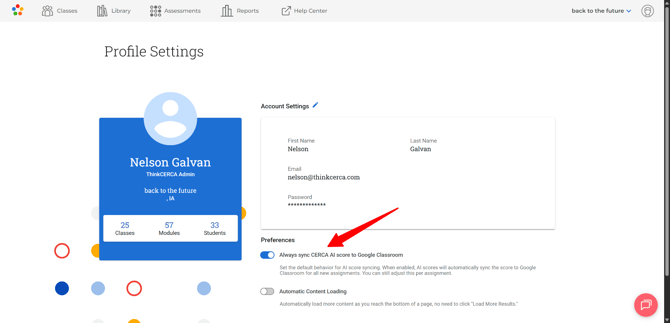
- Select your profile icon from the upper right corner of any page.
- Select “Profile Settings”
- Turn on the toggle to “Always Sync CERCA AI score to Google Classroom / Canvas”

Thank you for your work and your partnership with us.